


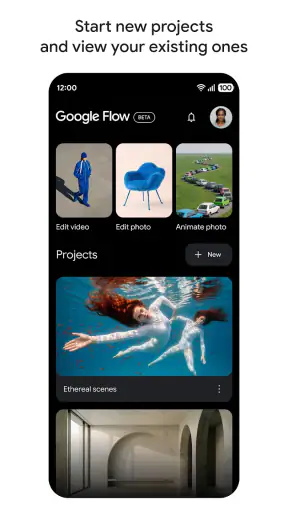
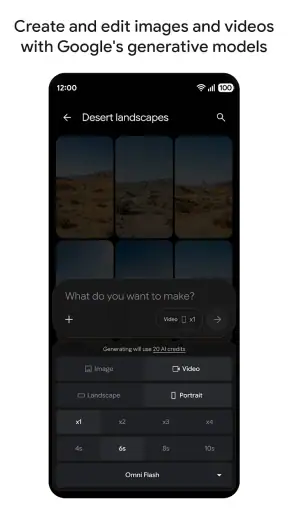
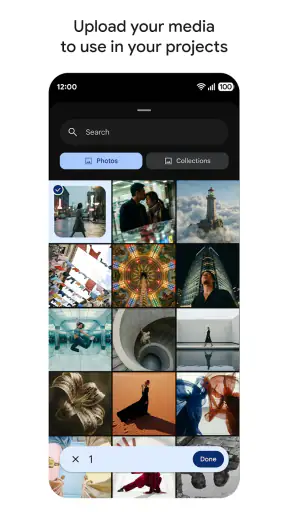
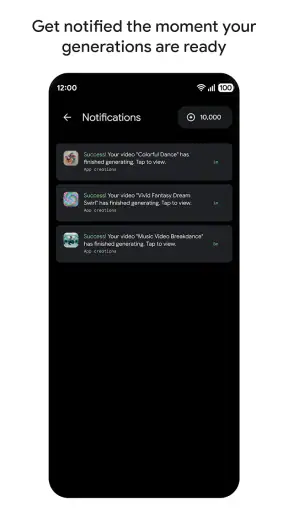
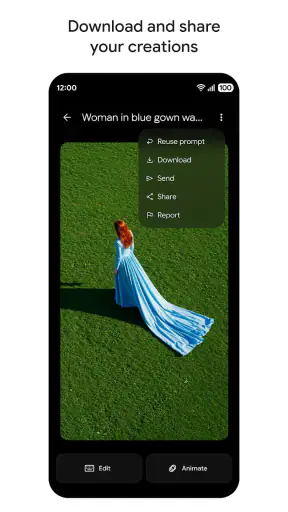
I tested Google Flow as an AI creative studio rather than treating it like a simple drawing app. That distinction matters. It is aimed at people who want help turning an idea into visual work, but it also raises practical questions when several people share one tablet or phone. Who is using the account? Which projects belong to whom? Is the person holding the device old enough for the content they may create or encounter? Those questions are just as important as the creative tools themselves.
My overall impression is positive but measured. The app is easy to approach when I have a rough concept and want to explore it quickly, especially for visual brainstorming, mood boards, experimental artwork, and early project development. At the same time, I would not treat it as a replacement for a full professional design suite, and I would be careful about letting younger household members use it without an adult nearby. Its Teen content rating is a useful reminder that an AI studio can produce a wide range of results depending on the prompt and the person using it.
How Google Flow works in a shared household
A useful creative station for everyday ideas
In a household, I can imagine using this app in a very ordinary situation: someone is planning a birthday invitation, another person wants a visual reference for redecorating a room, and a teenager is experimenting with character concepts for a school project. Instead of opening a blank canvas and waiting for inspiration, each person can begin with a description and use the resulting direction to decide what to develop next. That makes the app feel less like a traditional art program and more like a conversation partner for visual ideas.
The strongest use is not necessarily producing a finished image in one attempt. I found more value in using the first result as a starting point, noticing what works, and refining the concept. A vague request can produce a vague outcome, while a prompt that names the subject, atmosphere, color relationship, viewpoint, and intended use gives me a much clearer foundation. This is one of the first practical lessons I would give a friend: treat the first generation as a sketch, not as the final answer.
For shared devices, that workflow has an advantage. A family member who is not comfortable with layers, brushes, masks, or complex menus can still participate in the creative process. Someone who already uses established design software may appreciate the speed of exploration, but will probably still want another tool for precise finishing work. The app lowers the barrier to starting; it does not remove the need for judgment.
Where it fits beside familiar art apps
Compared with a conventional drawing app, Google Flow is better suited to ideation than hand-controlled mark making. A drawing application gives me direct command over every stroke, edge, texture, and layer. Here, I am guiding an AI system and evaluating what comes back. That is faster for some tasks, but less predictable when I need exact placement or a repeatable visual identity.
Compared with a standard photo editor, it is more useful before an image exists or when I want to explore a new direction. A photo editor remains the better choice for cropping, retouching, color correction, and careful preparation of an existing photograph. Compared with a professional design package, this app feels more approachable and less demanding at the beginning, while the professional option offers deeper control for print layouts, brand systems, detailed illustration, and production work.
That trade-off should guide the download decision. If I want to try several visual concepts during a short break, this is more inviting than opening a complicated desktop-style workspace. If I already know exactly where every element must go, I would choose a precision-oriented tool instead. The app is most convincing in the uncertain middle stage, when I know the feeling or subject I want but have not yet found the right visual language.
Keeping projects understandable when several people use one device
Shared-device use introduces a problem that has nothing to do with artistic quality: confusion. If one person experiments with fantasy scenes, another creates school graphics, and a third explores home decoration, the project history can become difficult to interpret. I recommend agreeing on a simple naming habit before anyone starts. Include the person’s initials and the purpose in the project name, then add a short description of the visual direction. This small step makes later coordination much easier.
I would also avoid assuming that an image made during a family session belongs to everyone equally. Decide who is responsible for the prompt, who approved the result, and who may reuse it. That is particularly useful when a teenager creates artwork for a school assignment or when one person’s personal idea appears on a device used by the whole household. The app can support creative collaboration, but the household still needs its own rules about ownership, sharing, and cleanup.
Setup boundaries, account habits, and creative coordination
Start with one clear purpose
When I first approach an AI art app, I am tempted to try everything at once. That usually makes it harder to judge whether the tool is actually helping. A better setup is to choose one small project, such as a poster concept, a room color study, or a set of visual references for a story. Write down the intended audience and the final destination before generating anything. A private experiment, a classroom presentation, and a public post may require very different levels of review.
This approach is especially helpful on a shared tablet. One person can use the app for a short, defined session instead of leaving a long trail of unrelated experiments. I would begin with a neutral project title, keep prompts focused, and review each result immediately. If the image is close but not useful, I would change one part of the instruction at a time rather than rewriting everything. That makes it easier to understand which wording improved the outcome.
A practical refinement is to separate the creative brief from the prompt itself. First describe the goal in ordinary language: “I need a calm, readable invitation for an afternoon event.” Then turn that into visual instructions. This prevents the prompt from becoming a pile of decorative adjectives. In my experience, clarity about purpose produces more useful results than simply asking for something “beautiful” or “professional.”
Account boundaries matter more than convenience
Because this is an app from Google Labs, I would think carefully about whose account is active before handing over a shared device. I would not casually let every household member work inside one person’s creative space. Even without inventing special family tools, the basic concern is clear: account activity, saved work, and personal ideas should not be mixed without agreement.
For a family, the cleanest arrangement is to decide whether the device is being used for individual sessions or for a deliberately shared project. Individual sessions should begin with the correct account context, while a shared project should have one adult or project owner responsible for organizing the material. If switching accounts is inconvenient, that is still preferable to pretending that one account represents everyone.
I would also make a habit of checking the screen before another person takes the device. AI-generated artwork can move in unexpected directions, and a private creative experiment may not be appropriate for a child, a guest, or a work-related setting. This is not a criticism unique to Google Flow; it is a sensible boundary for any generative creative tool. The difference is that the ease of producing variations can make accidental exposure more likely during casual household use.
Coordination without turning creativity into administration
Good coordination should stay lightweight. In a shared home, I would use a short session plan: identify the project, decide who may edit it, and agree on what counts as a finished result. For a group activity, one person can write the initial brief, another can suggest visual changes, and a third can review whether the result is suitable for its intended audience. This division gives everyone a role without requiring a formal production process.
One non-obvious benefit of this method is that it exposes disagreements early. A child may focus on a dramatic character, while an adult may be thinking about readability on a printed invitation. Looking at the same generated concept makes those differences visible. Rather than arguing about an abstract idea, the household can discuss a concrete image and decide what to keep, remove, or reinterpret.
Another useful habit is to save the reasoning behind a preferred direction, not just the final visual. Record why the group liked a certain mood, composition, or color relationship. If the project needs another version later, that note is more valuable than relying on memory. It also helps a young user learn that creative work involves decisions and revision, not only pressing a generation button.
Age, trust, and supervision
The Teen content rating should shape how I introduce this app to younger people. I would not present it as an unrestricted toy, and I would not assume that an AI creative studio will always stay within the boundaries of a school-friendly activity. A teenager may use it productively for concept art, presentation visuals, or storytelling, but an adult should still discuss what kinds of prompts are appropriate and what to do when a result is disturbing, suggestive, violent, or simply unsuitable.
Trust works better than silent monitoring when the user is old enough to participate in the conversation. I would explain that generated results can be surprising, that not every image should be shared, and that a young user can ask for help without being punished for encountering an uncomfortable result. For younger children, I would keep sessions supervised and choose the project together. The content rating is not a substitute for household judgment.
I would also talk about the difference between imagination and truth. A polished-looking image can still be invented or misleading. If a teenager uses the app for a report, presentation, or social post, the family should agree on when an image is illustrative rather than documentary. That distinction is easy to overlook because the creative output may look convincing even when its purpose is purely fictional.
Three workflows that reveal its real value
My first recommended workflow is the “three-direction brief.” Instead of asking for one perfect design, define the same project in three contrasting ways: restrained, playful, and dramatic. Comparing those directions helps identify the underlying preference. It is more informative than endlessly polishing one uncertain prompt, and it works well when a household cannot agree on a visual style.
The second is the “reference without copying” workflow. Describe the qualities you want—soft lighting, geometric forms, muted colors, a quiet mood—without asking for a direct imitation of a particular living artist or recognizable work. This encourages the app to help with visual language while keeping the creative brief more personal. It also teaches younger users to think in terms of characteristics rather than simply requesting a replica.
The third is the “human finishing pass.” Use Google Flow to explore composition and atmosphere, then move the chosen direction into a tool that offers exact editing. This is the workflow I would recommend most strongly for serious results. The AI stage helps me decide what the project could become; the finishing stage handles typography, alignment, cleanup, and final suitability. Trying to force one app to perform both roles is where disappointment usually begins.
What may frustrate experienced users
The main friction is predictability. When I need a specific object in a precise location, consistent details across several images, or a design that follows strict brand rules, an AI-led workflow can feel indirect. I may spend time correcting a result that would have taken less effort to draw or arrange manually. The speed of generation is helpful only when the review and correction time remain reasonable.
There is also a learning curve, although it is not the same curve as learning professional illustration software. Here, the challenge is learning how to describe visual intent and how to judge variations critically. Short prompts can be approachable but under-specified; long prompts can become contradictory. I found that clear priorities work better than a long list of demands. Say what must remain important, then let the app interpret secondary details.
People who need dependable offline work, meticulous vector construction, or a fully manual painting experience should look elsewhere. I would also skip it as the main tool for a production pipeline where every asset must match a strict template. It can still help with early inspiration, but the final work belongs in a more controlled environment.
What the current app profile tells me
Google Flow is free, which makes experimentation easier for students, casual creators, and households that do not want to commit money before understanding the workflow. Its average rating is 3.4, based on around 16 thousand ratings, so I would not describe the experience as universally smooth. That middle-ground score matches my view: the concept is appealing, but the usefulness depends heavily on expectations and on how carefully the user guides the process.
The app has passed 5 million installs, and its current version is 1.536.2. Those figures suggest that it has attracted substantial interest, but popularity does not change the basic advice: test it with a small project before making it central to school, work, or family organization. It is available at no cost, which lowers the risk of trying it, but the time spent learning prompts and reviewing results is still a real investment.
It supports Android 7.0 and later, so compatibility should cover many older devices. On a shared phone or tablet, I would still consider screen size and comfort. Creative comparison is easier on a larger display, especially when several people are discussing details. A small screen may be fine for quick experimentation, but it can make group review awkward and increase the chance that someone misses an important detail in the result.
My household verdict
I recommend Google Flow to households that want a friendly way to explore visual ideas together, provided they establish clear account boundaries and treat the Teen rating seriously. It is particularly good for a family poster project, a teenager developing story concepts, or an adult who wants to turn a vague decorating or presentation idea into something visible. The best results come when people discuss the brief, compare alternatives, and keep a human review step.
I would not make it the default creative tool for young children, confidential work, exact technical design, or anyone who dislikes the uncertainty of AI-generated results. A traditional drawing app is better for direct control, a photo editor is better for editing existing images, and professional design software is better for precise delivery. Google Flow earns its place before those tools, during the stage where imagination needs a push and the project still has room to change.
My final advice is simple: use it as a shared idea workshop, not as an automatic answer machine. Decide whose account is active, name the project clearly, keep age-appropriate supervision in place, and judge every result against the real purpose. With those boundaries, Google Flow is a practical way to make creative conversations visible. Without them, its convenience can create more confusion than inspiration.


